How to Use Claude AI for Your Amazon Business (PPC Audits, Listings, and More)
A practical look at how Amazon sellers are using Claude for PPC audits, listing reviews, keyword decisions, and competitor research, plus a safe, two-minute way to set up a packaged, repeatable version of each.
Most sellers already use Claude for something. A draft email, a quick summary, a one-off question about a policy. Far fewer use it for the recurring analysis that actually protects and grows an Amazon account: auditing PPC spend, checking a listing before it gets flagged, deciding which keywords are worth tracking, or figuring out where a competitor is actually beating you.
The gap is not capability. Claude can do all of this today. The gap is that a raw chat conversation gives a different answer every time you ask, depending on how you phrase the question and what you remember to mention. This guide covers both halves: how sellers are using Claude for these tasks right now, and how to set it up so the analysis is consistent every time, not just the first time.
The four things sellers actually use Claude for
Across the requests we see, Amazon seller use of Claude clusters into four recurring jobs.
PPC audits
Pasting or attaching a Search Term Report and asking Claude to find wasted spend, converting terms buried in auto campaigns, and search terms with too little data to judge yet. Done well, this sorts every term into a small number of honest categories instead of one long list.
Listing reviews
Pasting a title, bullets, and description and asking Claude to check for compliance risk (disease or treatment language, unverifiable superlatives, competitor brand names) at the same time as conversion strength. Most sellers only check for one of those two things, not both.
Keyword decisions
Turning a keyword export, often from a tool the seller no longer pays for, into a short, honest list of what is actually worth tracking going forward.
Competitor research
Pasting a competitor's listing and a set of their reviews and asking Claude to find the real gap: something missing from the product, something missing from the copy, or something missing from the offer.
Why a raw prompt is not enough on its own
Ask Claude to "audit my PPC" twice, in two different conversations, and you can get two different structures back. Not because the analysis is wrong, but because a plain question does not carry a fixed method with it. The thresholds you use for "wasted spend" this month might not be the same ones you use next month, simply because you phrased the question differently.
The fix is not a longer prompt. It is a packaged one, built once, that enforces the same method every time: the same categories, the same thresholds relative to your own account, and the same requirement to show its reasoning on every finding. Claude supports this natively through a feature called Skills, and it also works as a plain prompt for anyone who prefers not to install anything.
Is this safe to set up?
Yes. If you landed on this section directly: this guide is about using Claude, Anthropic's AI assistant, for Amazon seller analysis, PPC audits, listing reviews, keyword decisions, and competitor research, either through free packaged Claude Skills or plain prompts. Here is why it is safe either way. A packaged Skill is a text file (or a small folder of them) containing instructions for Claude to follow. It is not a program, it does not run in the background, and it cannot install anything on your computer. You could open every file in a plain text editor and read it end to end before doing anything else.
None of this connects to your Amazon account either. Every method described here works only on data you export yourself (a Search Term Report, a keyword list) or content you paste in directly (a listing, a set of reviews). There is no credential request, no account connection, and no write access anywhere in the process.
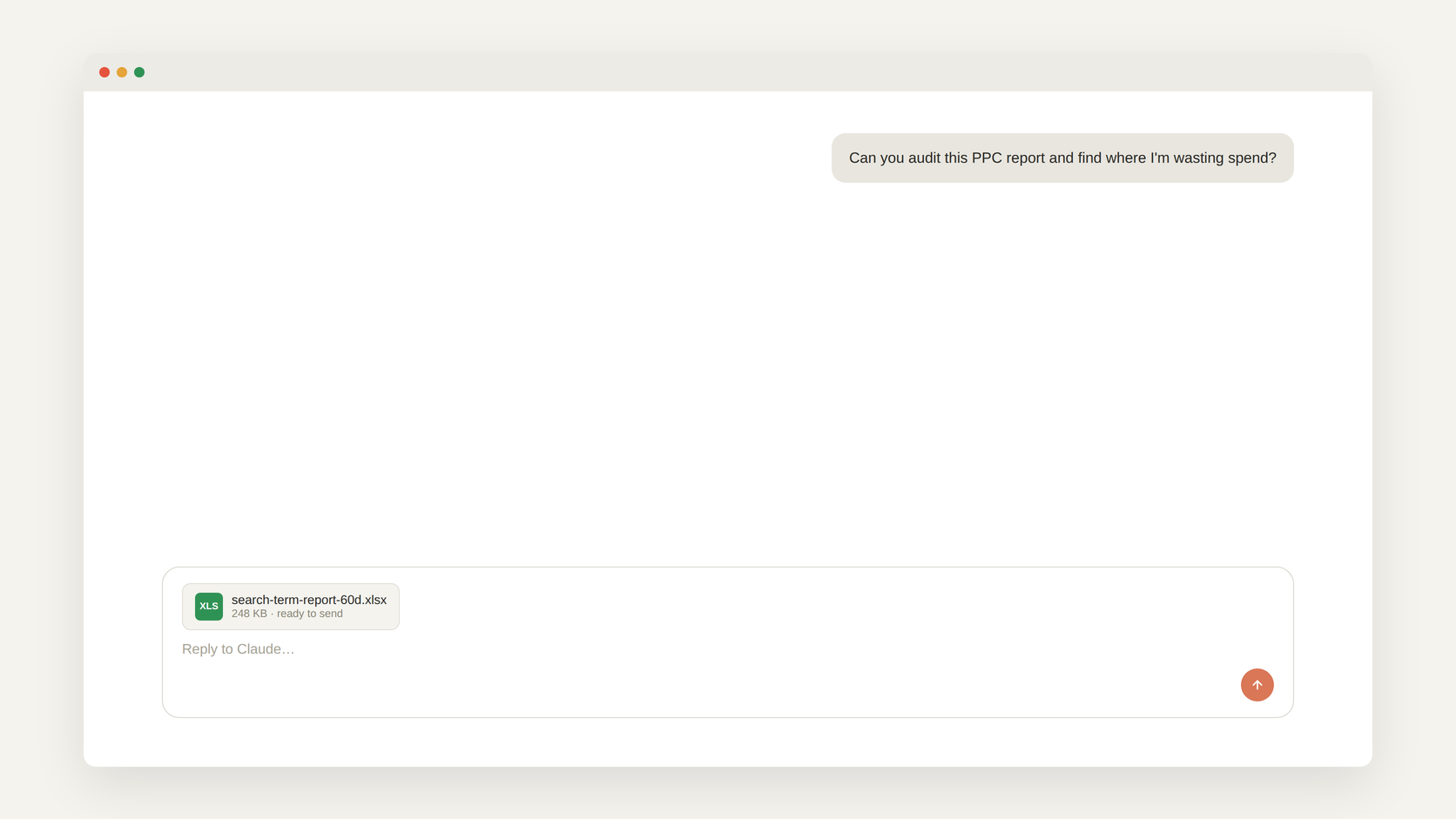
The fastest way to start: no installation at all
If you want a result in the next five minutes, using Claude to audit your Amazon PPC spend, no installation is required, just a plain prompt.
- Export your Search Term Report for the last 60 days from the Amazon Ads console.
- Open a fresh Claude conversation and attach the export.
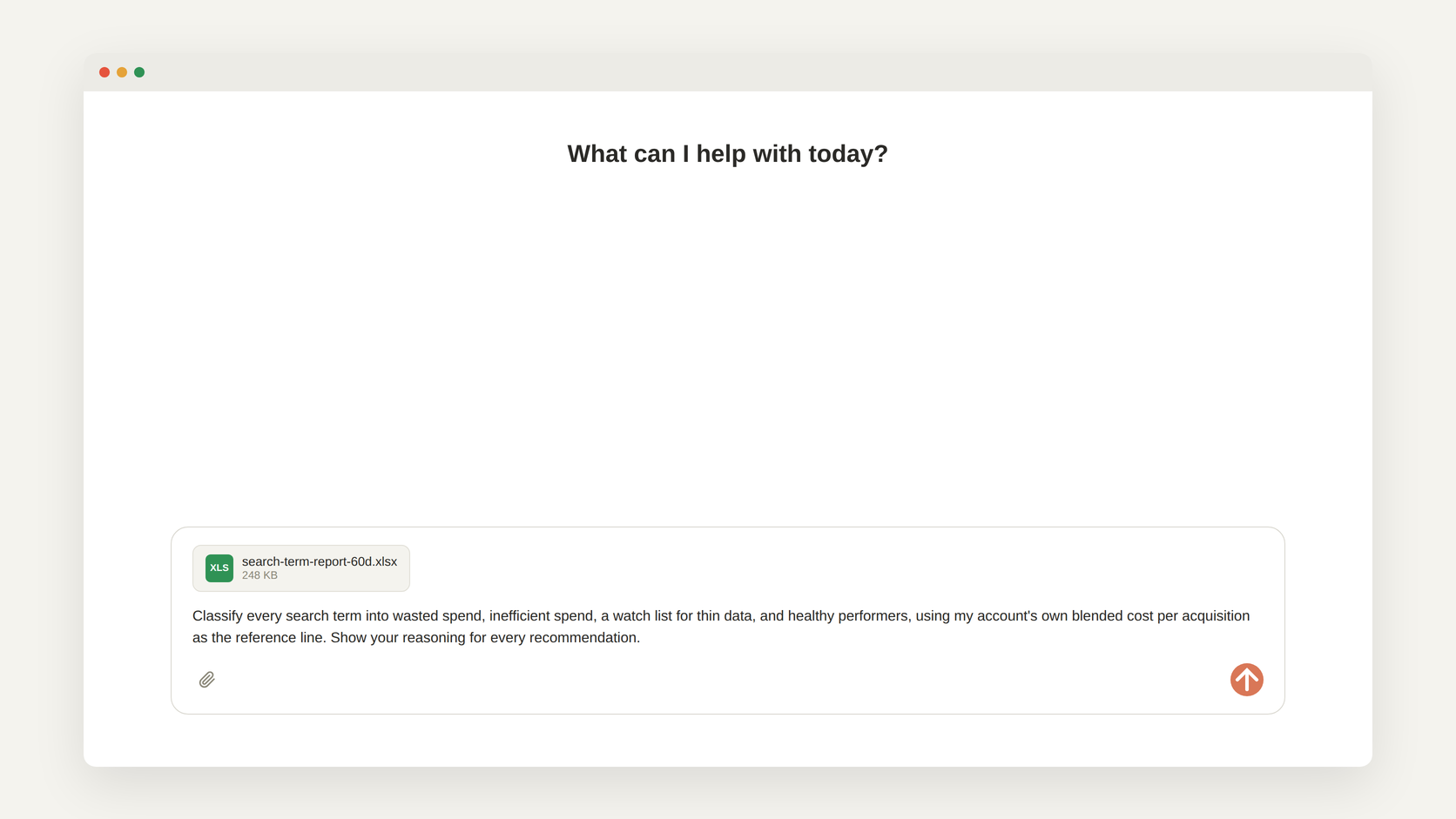
- Ask Claude to classify every search term into wasted spend, inefficient spend, a watch list for thin data, and healthy performers, using your account's own blended cost per acquisition as the reference line, not an industry benchmark.
- Ask it to show the reasoning behind every recommendation before you act on any of it.
That single prompt, run once, gets you a real first answer. The tradeoff is that you have to describe the method again in every new conversation. For a one-time check, that is fine. For something you plan to run every week, it is worth setting up properly, which takes about two minutes.
The two-minute setup: making it automatic
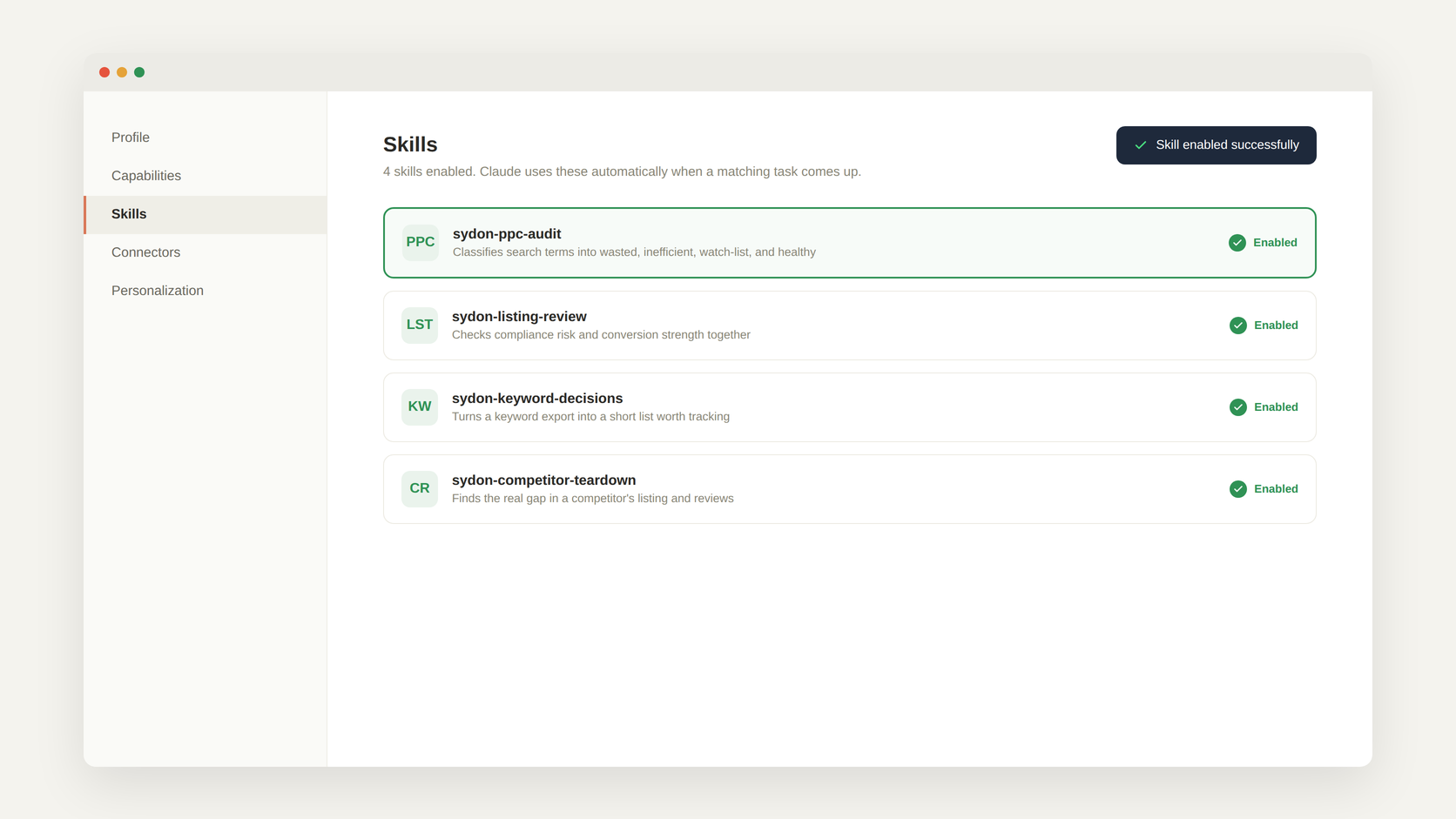
If you want one of these methods (PPC audit, listing review, keyword decisions, or competitor research) to run automatically instead of pasting a prompt each time, Claude's Skills feature does that. Upload it once, and it triggers on its own whenever you attach the right file or ask the right kind of question.
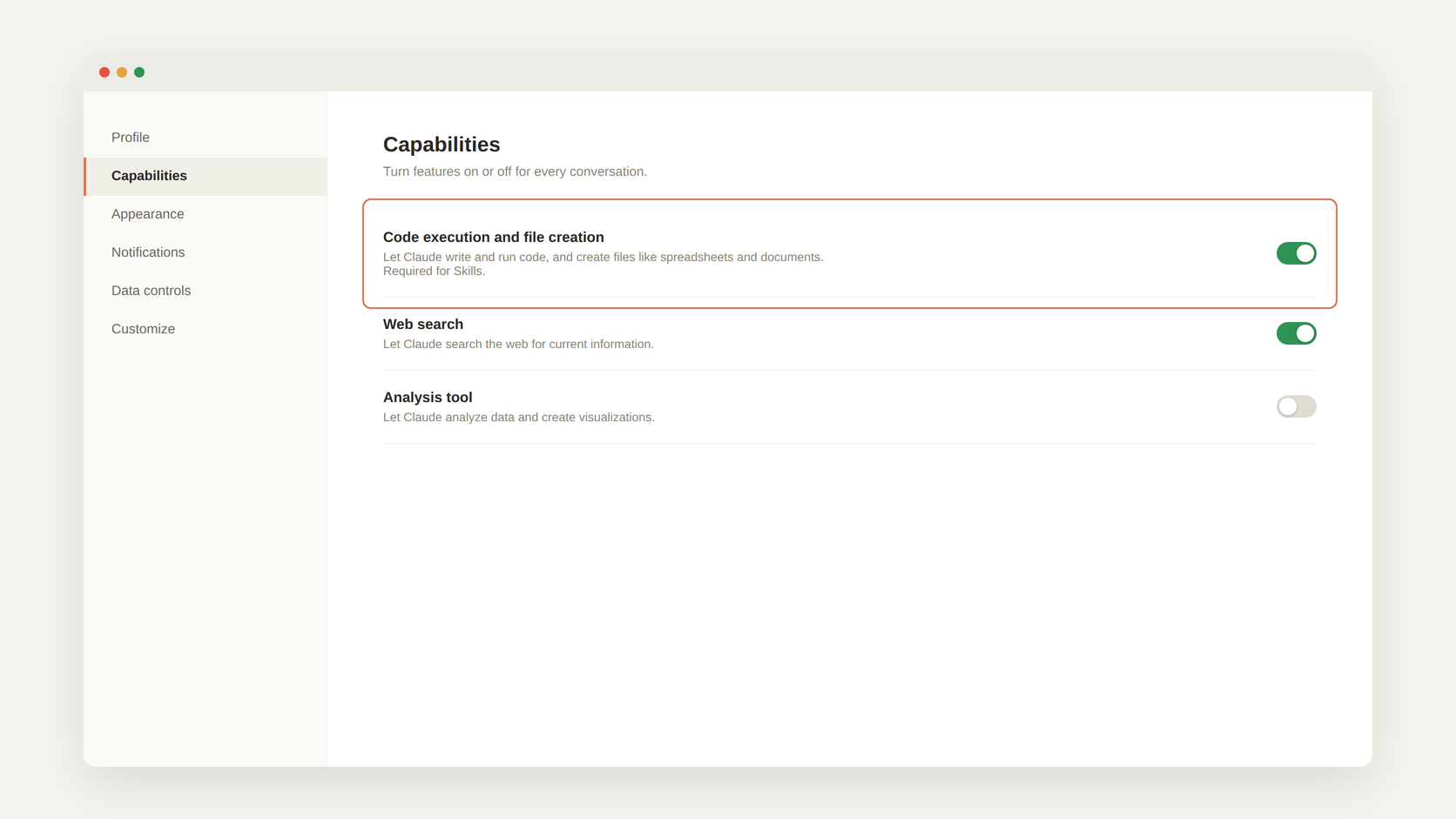
- Turn on Code execution and file creation first, in Settings under Capabilities. Skills will not work without this, and it is a one-time setting, not something you repeat per skill.
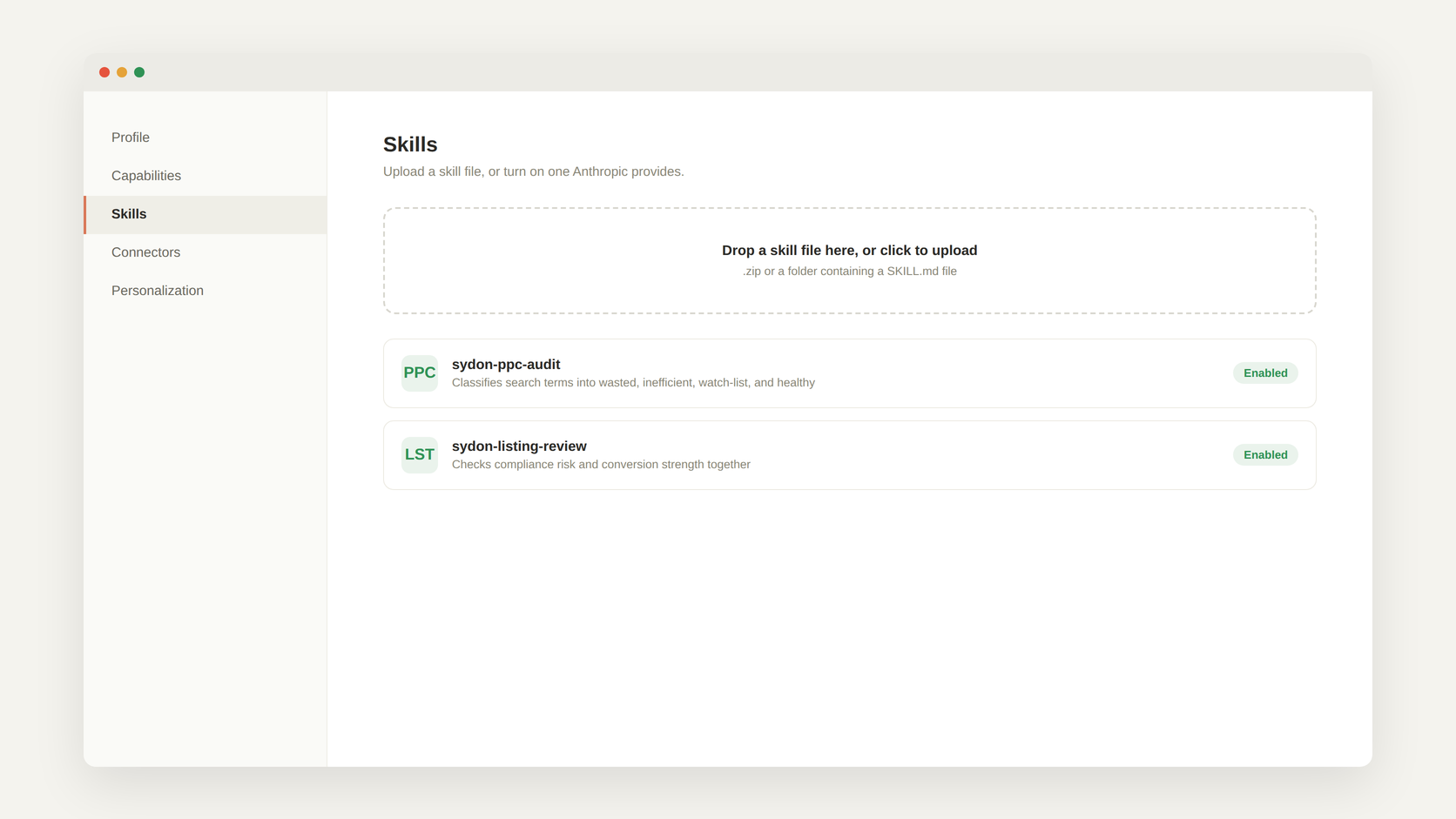
- Go to Skills. Depending on your plan, this is under Settings or under Customize.
- Upload a packaged skill file, or create your own by describing the method once and saving it.
- Confirm it shows as enabled. Claude will read its instructions automatically from then on, whenever a matching task comes up.
Uploading your own Skills currently requires a Claude plan that supports Skills (Pro, Max, Team, or Enterprise). On any other plan, the plain prompt method above works exactly the same way, every time, you just paste it yourself.
A packaged version, if you want one ready-made
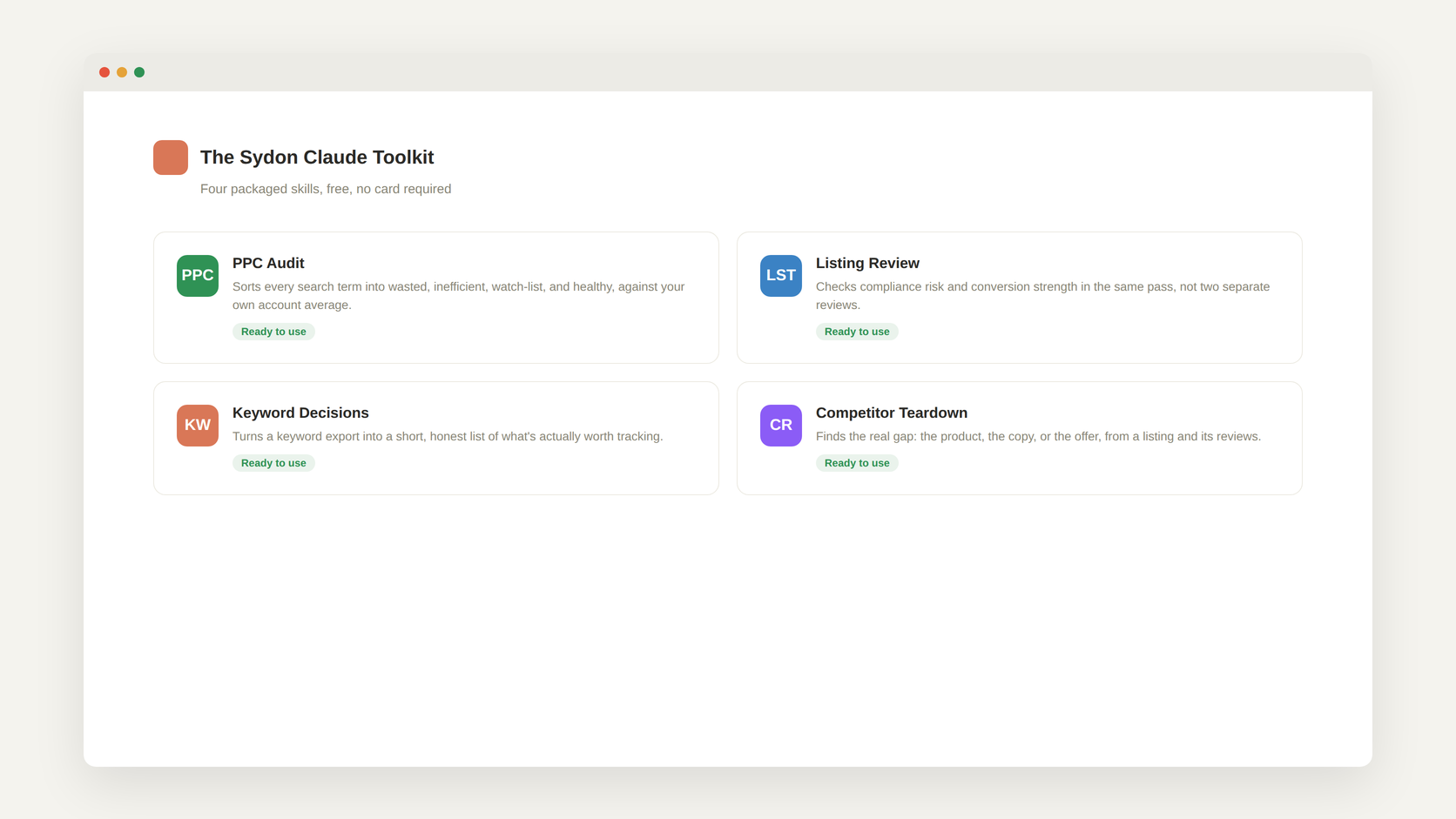
We built and maintain a free set of four Skills covering the PPC audit, listing review, keyword decision, and competitor research jobs described above, plus ten standalone prompts for smaller, one-off questions. Every one of them ends at a recommendation you review and apply yourself. None of them connect to your Amazon account, request a credential, or change anything without you doing it by hand.
New to all of this and would rather skip setting anything up yourself? We built exactly that.
What a finished answer actually looks like
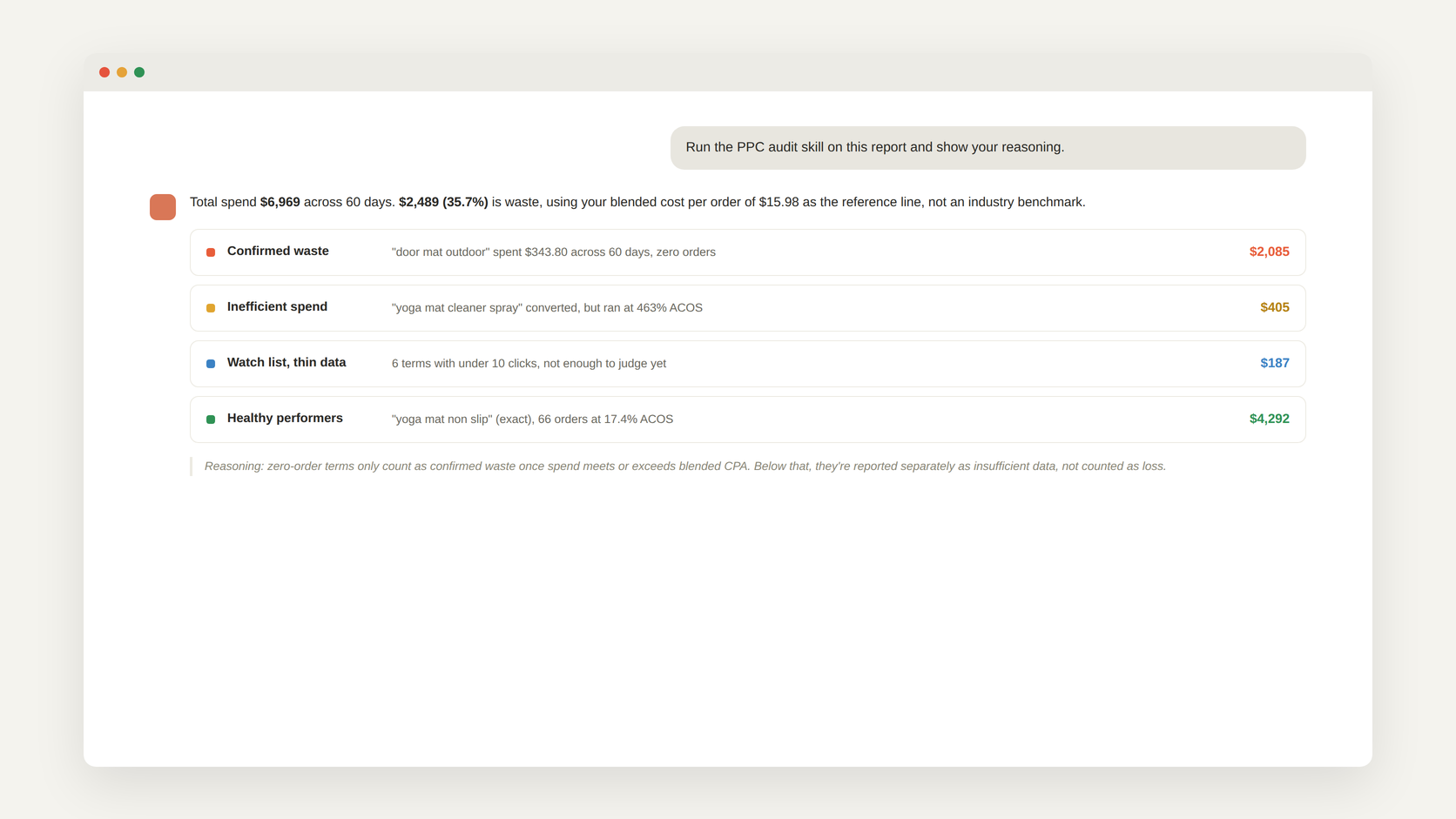
Here is what comes back once the method is fixed. Not a wall of search terms to sort through yourself, four categories, each with a real example and a dollar figure attached to it.
Confirmed waste is spend on a term with zero orders that has already outspent your blended cost per order, the purest dollar to recover, because cutting it costs no sales. Inefficient spend is a term that is converting, just at a cost that eats the margin. The watch list holds anything with too little data to judge yet, reported separately so it never gets miscounted as loss. Healthy performers are named too, not just implied by omission.
The reasoning underneath each number is included by default, not something you have to ask for a second time. That is the actual difference between asking Claude a question and running a method: the same four categories, the same reference line, and the logic shown every time, whether this is the first run or the fiftieth.
Common questions
Do I need a paid Claude plan?
Only if you want the automatic Skills version. The plain prompt method works on any plan that supports file attachments.
What if a skill does not seem to trigger automatically?
Check that Code execution and file creation is turned on in Settings first. This is the most common reason a newly uploaded skill does not activate.
Does any of this connect to my Amazon account?
No, and it cannot. Every method described here works only on files you export and attach yourself, or content you paste in directly.